
Registering an API Client
To begin integrating with the Lion Smart API, use the Lion Smart Web App to register an API client for your company. Upon Registration, your application will receive a Client ID and Client Secret, which are required for authenticating API requests. You can manage your registered API clients and report preferences from the Company Info page in the Web App.
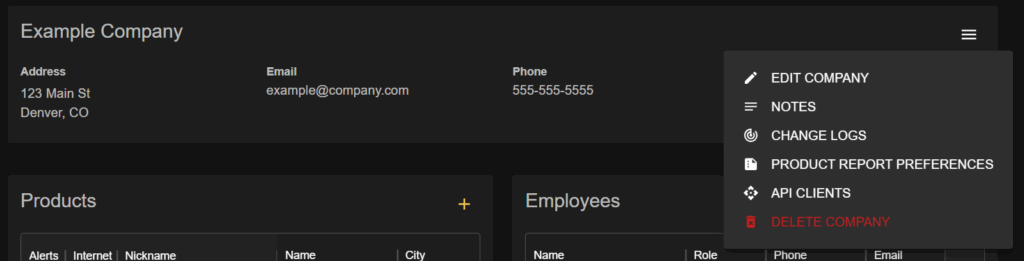
Configuring Report Preferences
You can customize your company’s data reporting preferences through the Lion Smart Web App to align with your specific data requirements.
To set up report preferences
1.Name your report configuration for easy identification.
2. Provide a webhook URL along with an API token. This endpoint will receive notifications when new reports are available.

3. Select a start date and time for report generation.
4. Choose the data points to include each report.
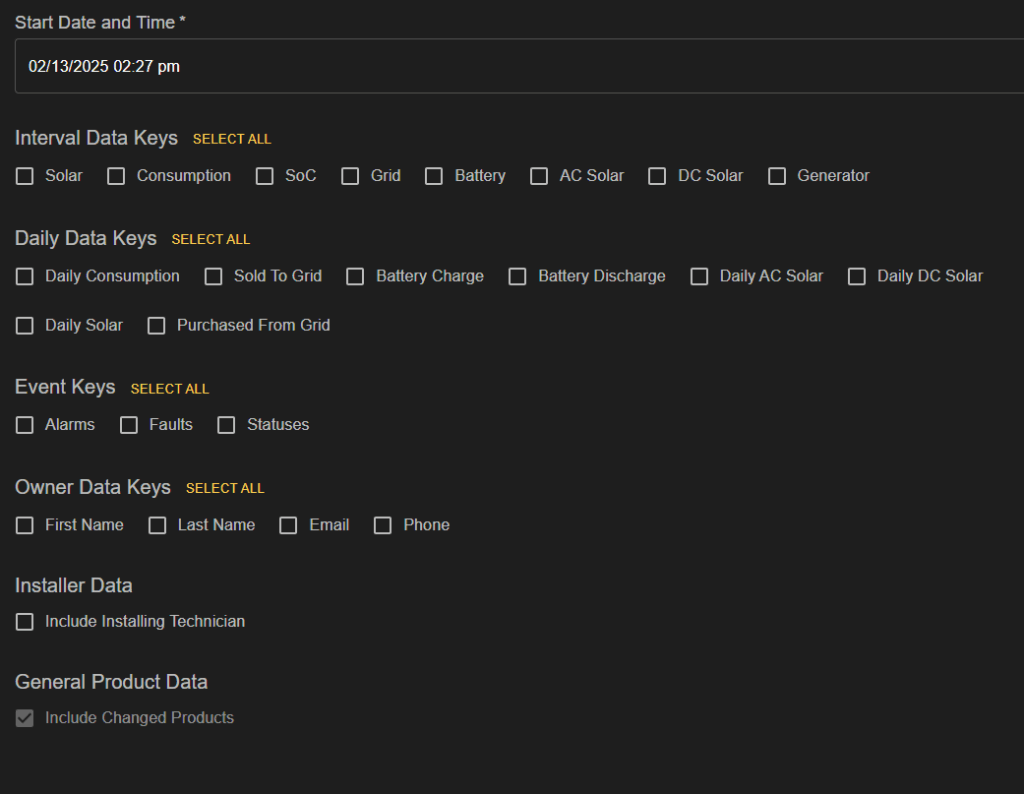
Once configured, your webhook will receive daily notifications when a new report is available. These notifications include URLs for downloading the report via HTTP GET requests to the Lion Smart API. The contents of each report will correspond to the selected data points in your configuration.
Configuring a Webhook
We require app clients to register a webhook to facilitate automated consumption of data reports. The webhook is a simple API endpoint that can accept incoming POST requests. For security, an API token is also required. This token will be sent in the x-api-token header of the POST request so that your webhook can verify the payload originates from Lion Energy.
Managing Report Preferences
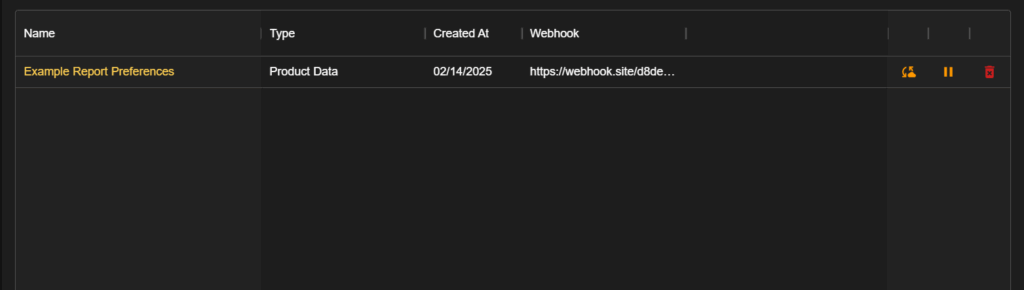
Report preferences can be viewed and modified from the Report Preferences dashboard. Available actions include:
- Edit the configuration for report preferences
- Initiate a Full sync, which forces the next daily report to include all products, not just those that have changed
- Pause daily report generation while retaining the configuration, this can be resumed at any time
- Delete the report configuration entirely
Only one active report configuration is allowed per company. To create a new configuration, you must either edit the current one or delete it and start over.
Obtaining the report
To automate report retrieval, implement a handler within your application that listens for webhook notifications. Each notification will include URLs for downloading the report via HTTP GET requests, in the following format:
{
  "meta": {
    "total_files": 2,
    "report_type": "daily"
  },
  "links": [
    {
      "page": 1,
      "url": "https://lion-api.lionenergy.com/reports?date=2025-02-12&page=1"
    },
    {
      "page": 2,
      "url": "https://lion-api.lionenergy.com/reports?date=2025-02-12&page=2"
    }
  ]
}
Before making these requests, you must first obtain an OAuth 2.0 access token, which must be included in the request handlers. For details on acquiring a token, refer to the API Client Registration documentation.
Code Examples
The following examples demonstrate the basic API requests required to retrieve data reports from the Lion Smart API. All requests must be authenticated using an OAuth 2.0 access token, which can be obtained by registered clients.
The included TypeScript samples outline a basic workflow for retrieving and parsing the raw report response. You may need to adapt the code depending on programming language, runtime environment, middleware, or available libraries.
Obtaining an access token
Registered API clients can request an OAuth 2.0 Access Token using their assigned Client ID and Secret Key. This token must be supplied in the Authorization header of all subsequent API requests. Access tokens are valid for 1 hour.
POST /clients/token
cURL
curl --location 'https://lion-api.lionenergy.com/clients/token' \
--header 'Content-Type: application/json' \
--data '{
    "client_id": "YOUR CLIENT ID",
    "secret_key": "YOUR SECRET KEY"
}
TypeScript
async function getAuthToken(clientId: string, secretKey: string) {
  const url = 'https://lion-api.lionenergy.com/clients/token';
  try {
    const response = await fetch(url, {
      method: 'POST',
      headers: {
        'Content-Type': 'application/json',
      },
      body: JSON.stringify({
        client_id: clientId,
        secret_key: secretKey,
      }),
    });
    if (!response.ok) {
      throw new Error(`HTTP error ${response.status}: ${response.statusText}`);
    }
    const data = await response.json();
    console.log('Token response:', data);
    return data; // Expect this to contain access_token or similar
  } catch (error) {
    console.error('Fetch error:', error);
  }
}
// Example usage
const clientId = '<CLIENT ID>';
const secretKey = '<SECRET>';
getAuthToken(clientId, secretKey);
Obtaining a Daily Report
Daily Reports can be obtained by a simple API request with the date and page number provided as query parameter. This request will return the raw data file in its response which can then be parsed and stored in your desired format. A cURL command can output the result straight to its own GZIP file in your system.
GET /reports
cURL
// add desired date string and page number to query parameters
curl --location 'https://lion-api.lionenergy.com/reports?date=2025-07-16&page=1' \
--output <FILE_NAME>.gz \
--header 'Authorization: Bearer <YOUR TOKEN>'
TypeScript
async function fetchReport(date: string, page: number, token: string) {
  const url = new URL('https://lion-api.lionenergy.com/reports');
  url.searchParams.append('date', date);
  url.searchParams.append('page', page.toString());
  try {
    const response = await fetch(url, {
      method: 'GET',
      headers: {
        'Authorization': `Bearer ${token}`,
      },
    });
    if (!response.ok) {
    throw new Error(`HTTP error! Status: ${response.status}`);
  }
  // Read the gzipped data as a Buffer
  const compressedBuffer = await response.buffer();
  // Decompress using zlib
  const decompressedBuffer = zlib.gunzipSync(compressedBuffer);
  // Parse JSON
  const json = JSON.parse(decompressedBuffer.toString('utf8'));
  console.log(json);
  return json;
  } catch (error) {
    console.error('Fetch error:', error);
  }
}
// Example usage
fetchReport('2025-02-12', 1);
Obtaining a Sample Report
If you have used the interface in the Lion Portal to create a sample report, that report can be obtained by making a GET request to the /reports/example endpoint.
GET /reports/example
cURL
curl --location 'https://lion-api.lionenergy.com/reports/example' \
--output <FILE_NAME>.gz \
--header 'Authorization: Bearer <YOUR TOKEN>'
TypeScript
async function fetchExampleReport(token: string) {
  const url = 'http://lion-api.lionenergy.com/reports/example';

  try {
    const response = await fetch(url, {
      method: 'GET',
      headers: {
        'Authorization': `Bearer ${token}`,
      },
    });

    // Read the gzipped data as a Buffer
    const compressedBuffer = await response.buffer();

    // Decompress using zlib
    const decompressedBuffer = zlib.gunzipSync(compressedBuffer);

    // Parse JSON
    const json = JSON.parse(decompressedBuffer.toString('utf8'));

    console.log(json);
    return json;
  } catch (error) {
    console.error('Fetch error:', error);
  }
}

// Example usage
const token = 'your-token-here';
fetchExampleReport(token);